Before you begin, create a Nuntly account if you haven’t already.
The Getting started page in your dashboard walks you through three steps to get up and running. Each step builds on the previous one.

Step 1: Create your API key

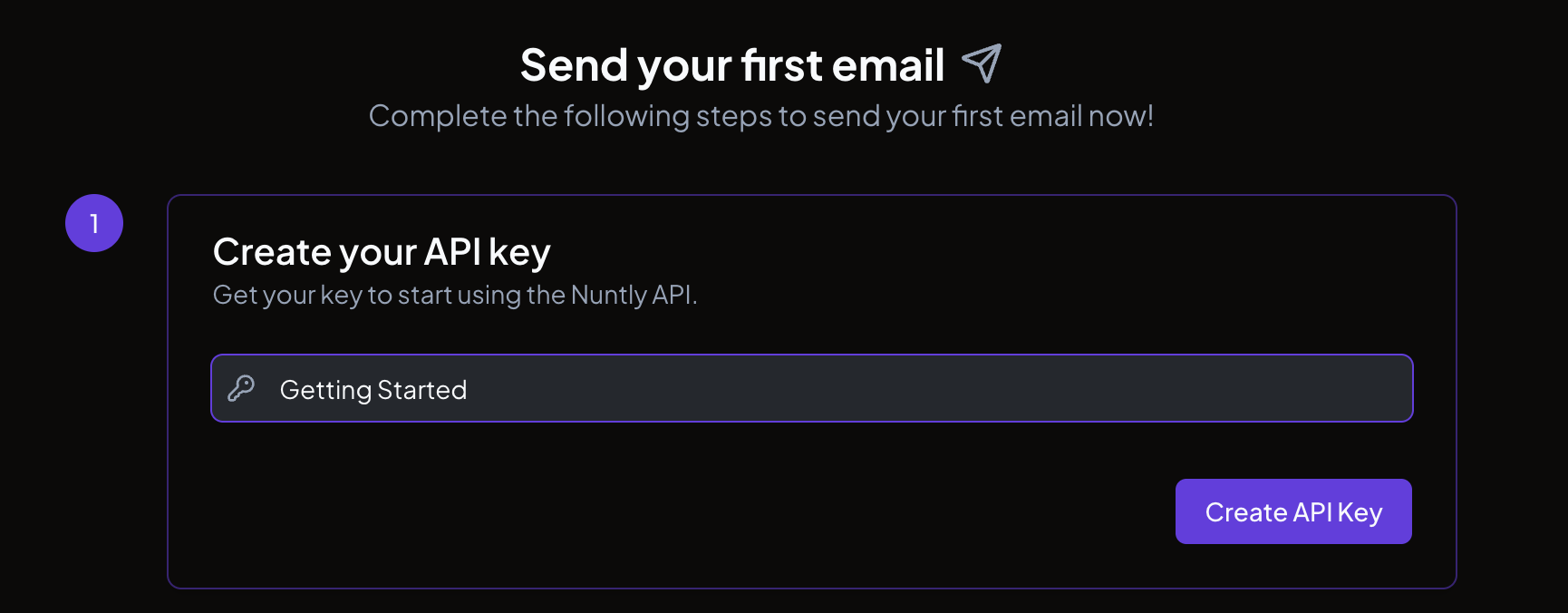
Your API key authenticates all requests to the Nuntly API. On the getting started page:
  1. Enter a name for your key (the default is “Getting Started”, but you can change it to anything descriptive)
  2. Click Create API Key
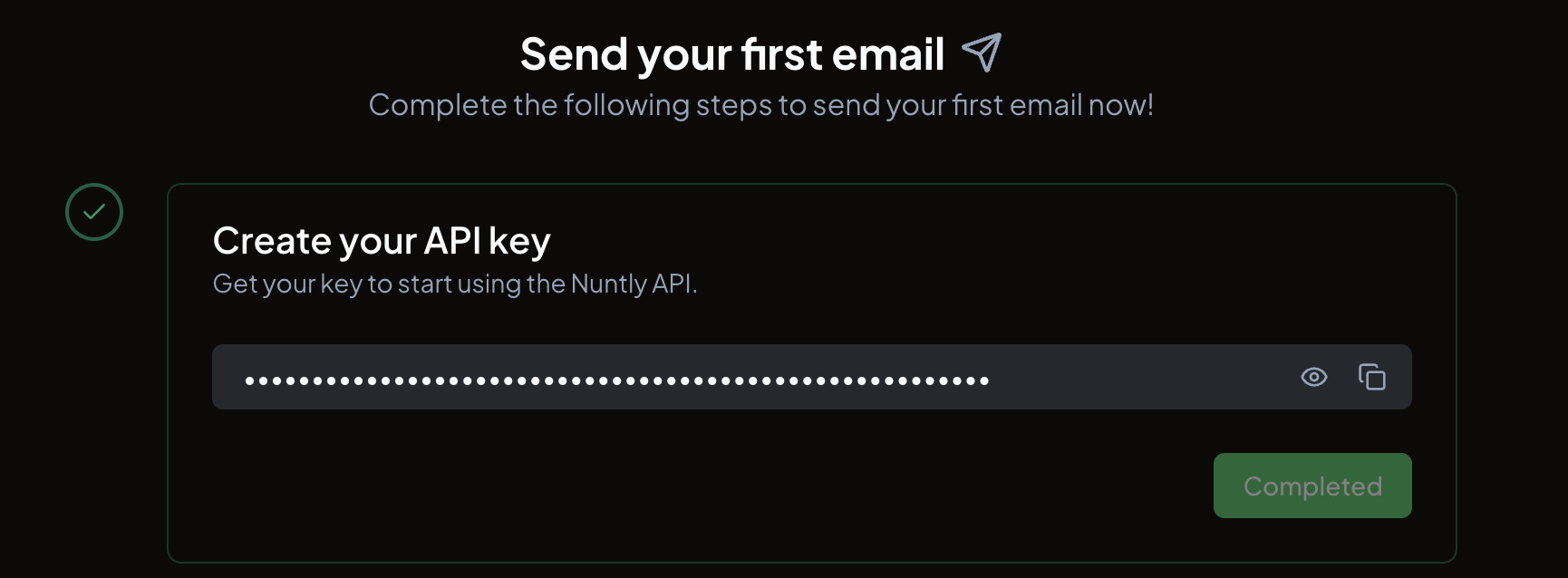
The getting started page showing step 1 with the API key name input field Your API key is displayed immediately after creation. Copy it and store it in a secure location. You will not be able to view it again from this page. Step 1 completed, showing the newly created API key value with copy and reveal buttons
This is the only time your API key is displayed on this page. Store it in an environment variable or a secrets manager before moving on.
You can create and manage additional API keys at any time from the API keys page.

Step 2: Send your first email

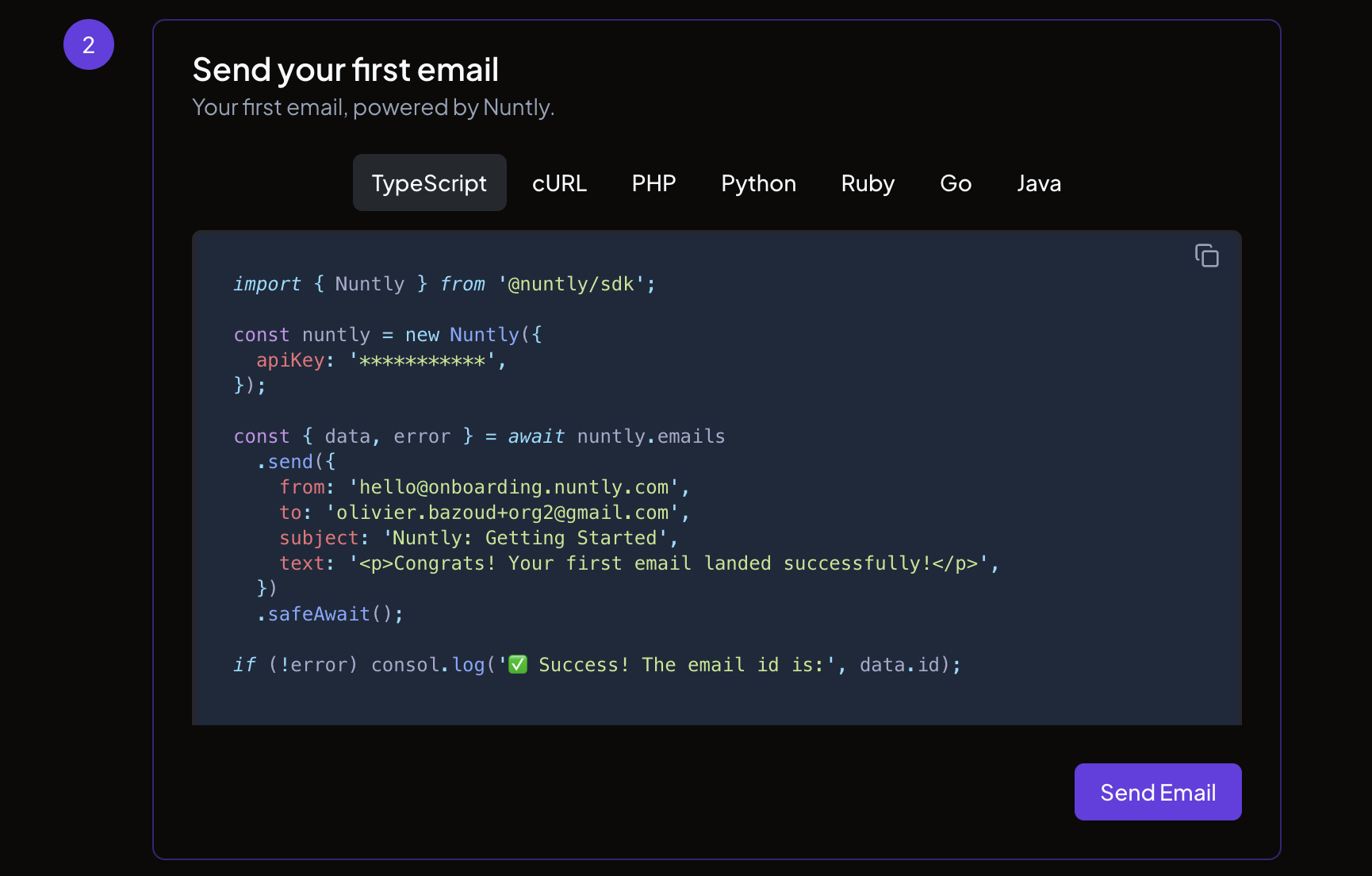
Step 2 shows code samples for sending an email using the API key you just created. The samples are available in TypeScript, cURL, PHP, Python, Ruby, Go, and Java. Step 2 showing the code samples with a language selector and a Send Email button Click Send Email to send a test email using your new API key. A success notification confirms the email was sent. For a deeper look at sending emails programmatically, see Send your first email.
Step 3: Go further

Once your test email is sent, step 3 points you to the next things to set up:
  • Setup your own domain to send emails from your own domain instead of a shared one. See the sending domains guide.
  • Setup webhooks to receive real-time notifications when email events occur. See the webhooks guide.
  • Upgrade your plan to increase your sending limits and unlock additional features.
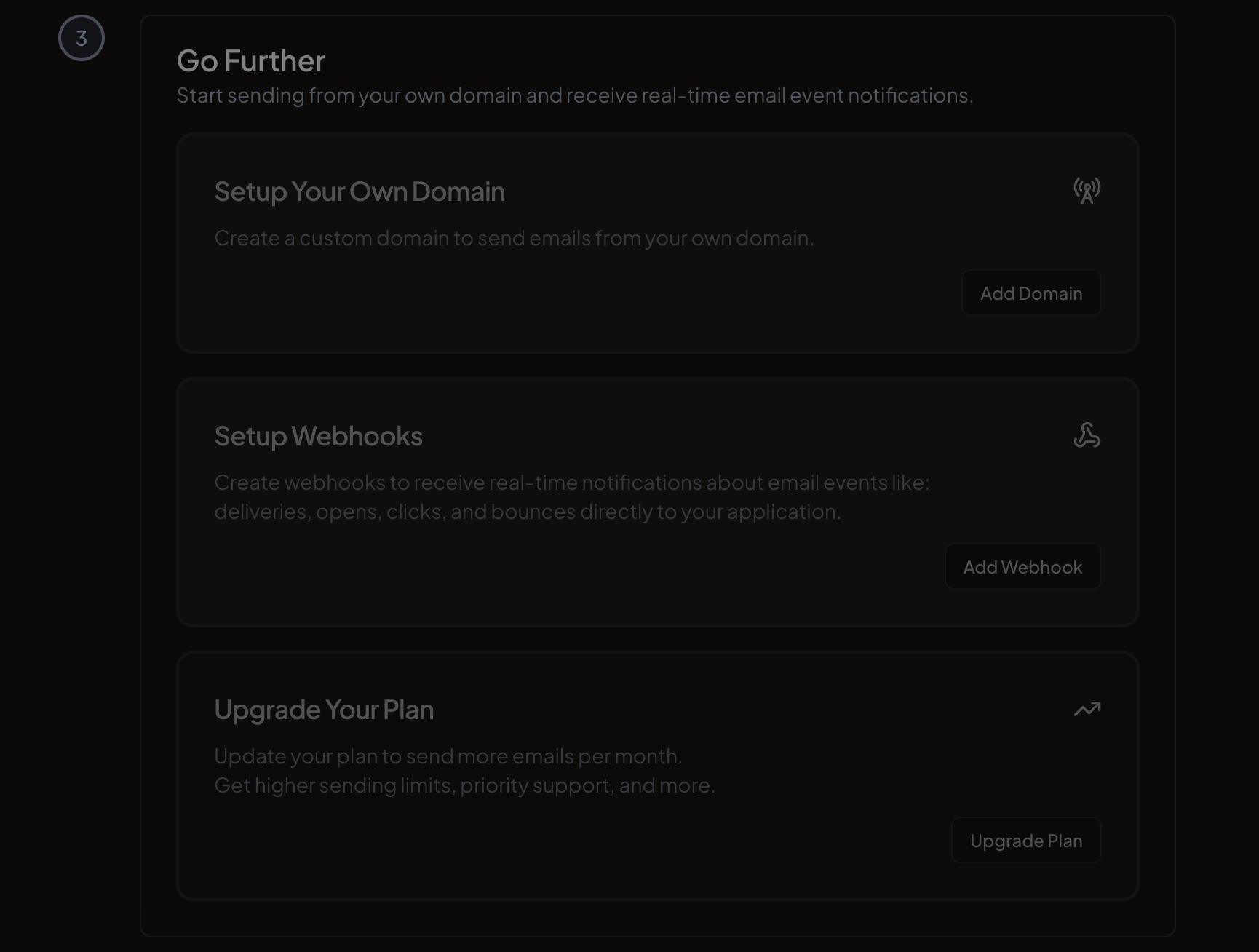
Step 3 showing cards for domain setup, webhook setup, and plan upgrade