Create an account
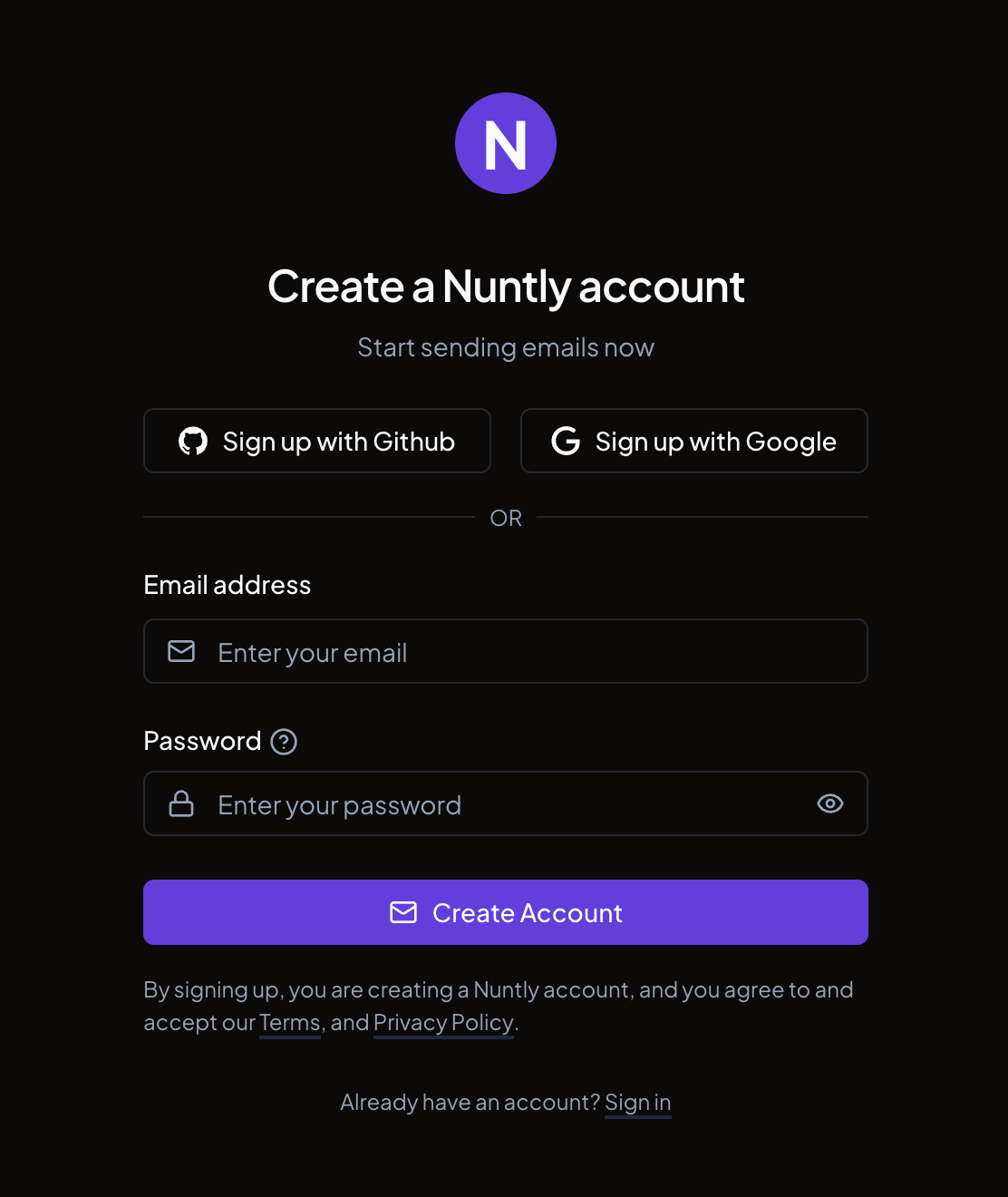
Go to nuntly.com and click Start Free today. You can create an account using any of the following methods:- Email and password: provide an email address and choose a password
- GitHub: authorize with your GitHub account
- Google: authorize with your Google account
With email and password
- Enter your email address
- Choose a password that meets the requirements
- Click Create Account
With a social provider
Click Sign up with GitHub or Sign up with Google. You will be redirected to the provider to authorize access, then returned to Nuntly. Your account is ready immediately. No email verification step is required.Verify your email
If you signed up with email and password, check your inbox for a verification email from Nuntly. Click the link in that email to verify your address.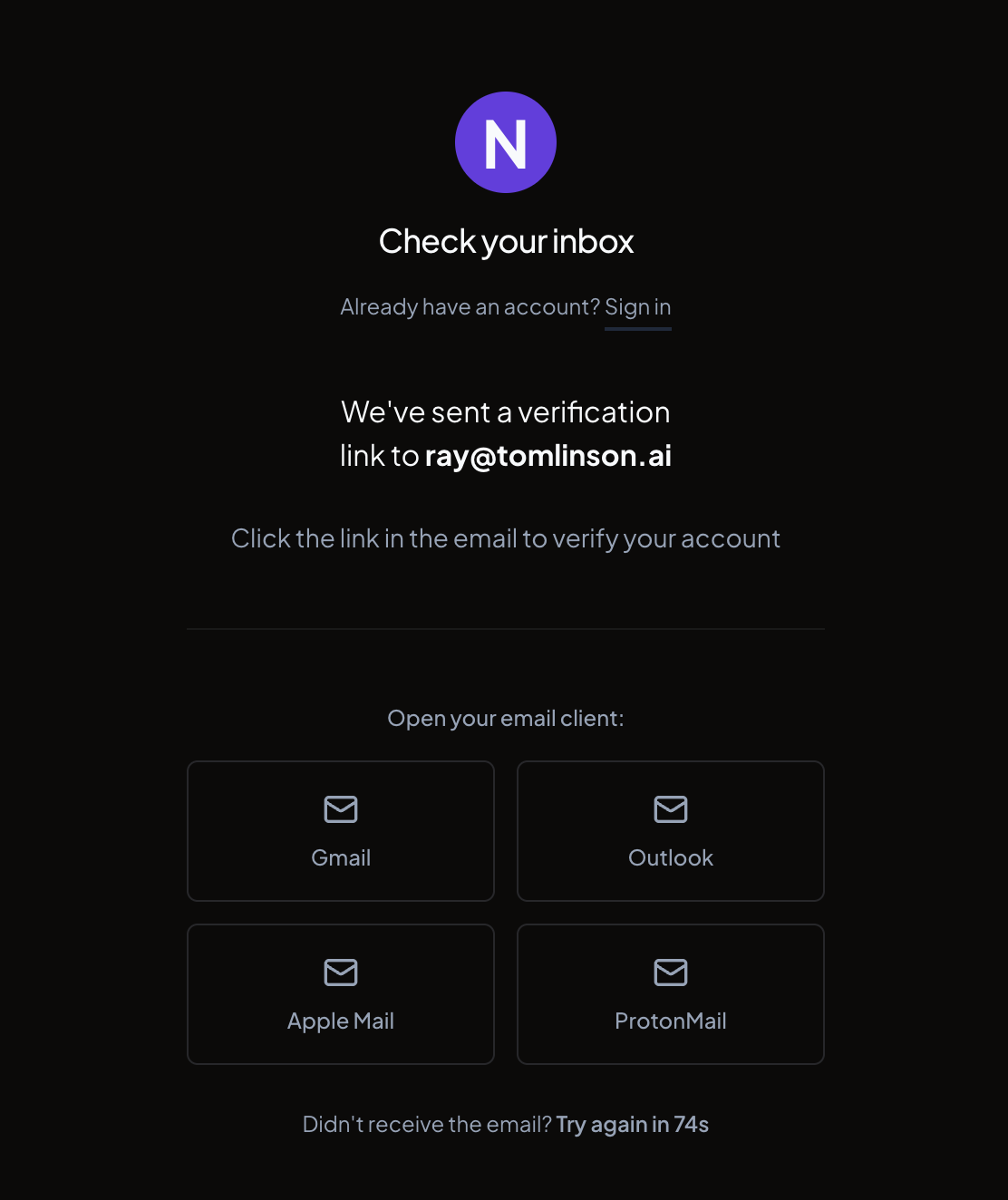
Sign in
Go to nuntly.com and click Sign in. Use the same method you used to sign up: email and password, or a social provider.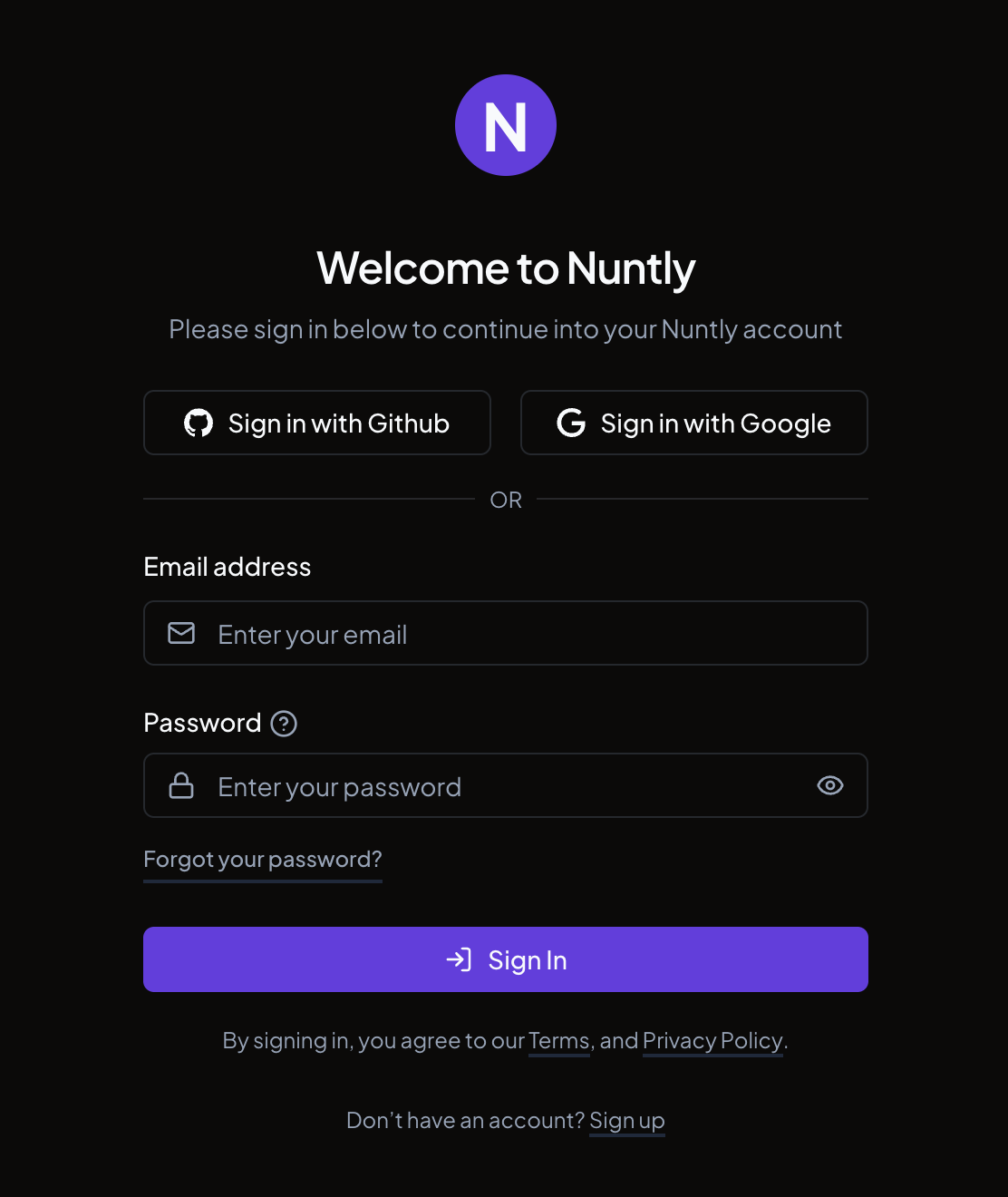
Enable two-factor authentication
Two-factor authentication (2FA) adds an extra verification step each time you sign in, protecting your account from unauthorized access.You need an authenticator app on your device to set up 2FA. Compatible apps include Google
Authenticator and Authy.
- In the dashboard, go to Settings > Security
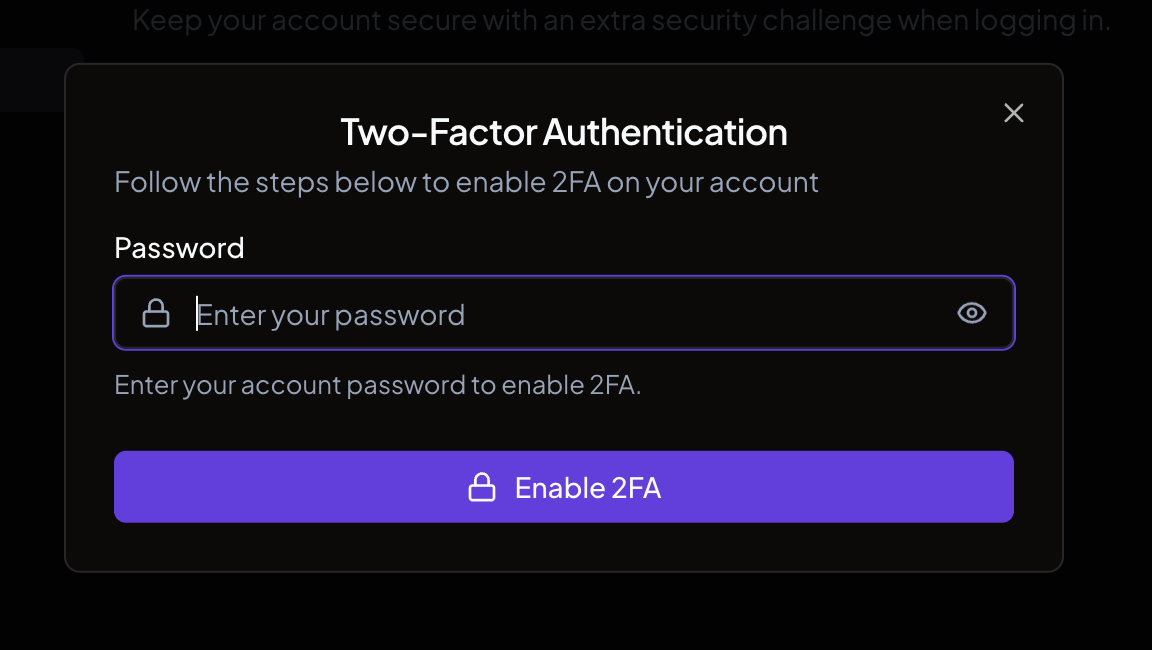
- Click Enable 2FA

- Enter your account password to confirm your identity and click Enable 2FA
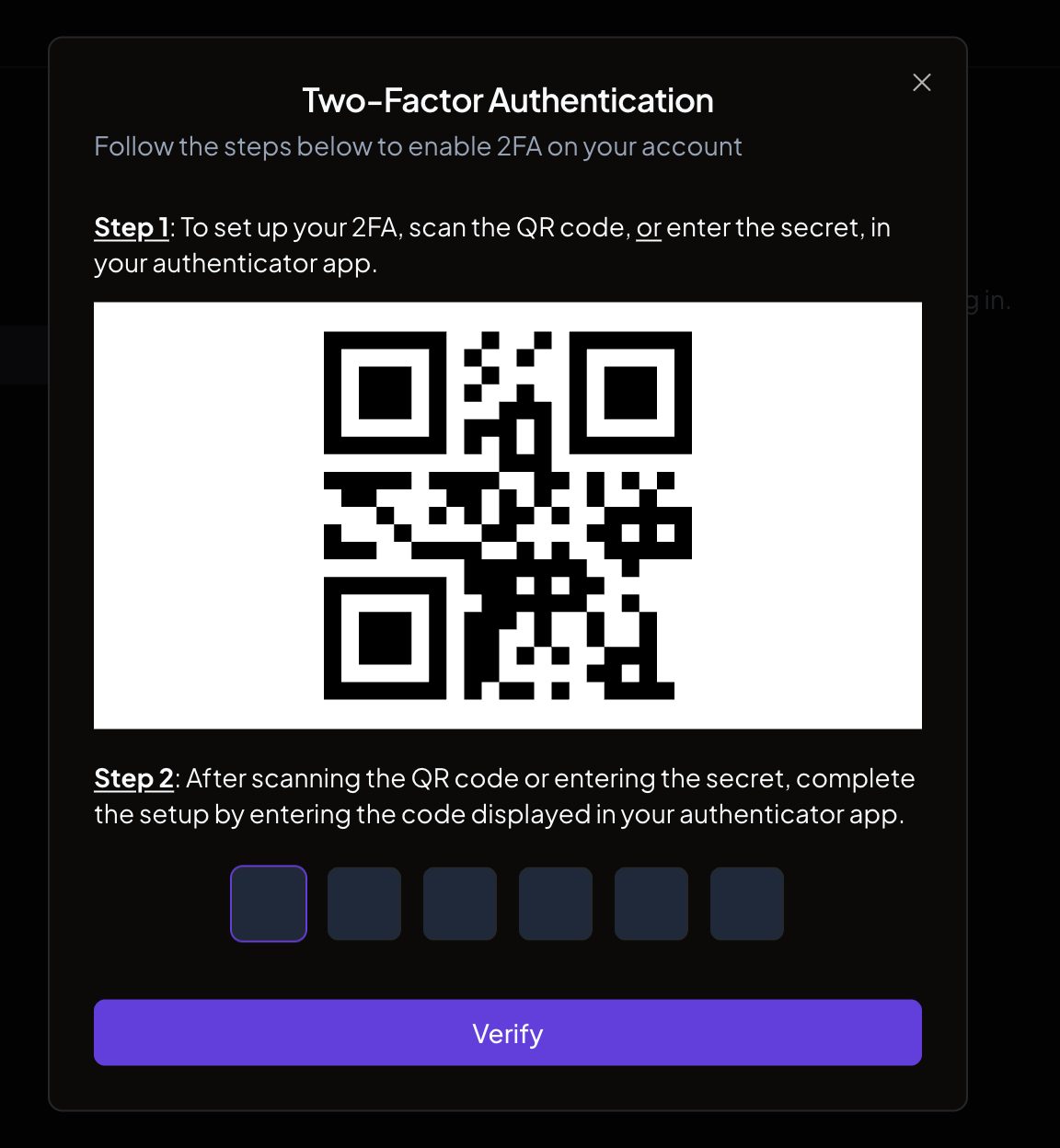
- Scan the QR code with your authenticator app, or manually enter the secret shown below it
- Enter the 6-digit code displayed in your authenticator app
- Click Verify